sickn33/agentic-awesome-skills / plugins/aasb-aas-mobile-app-builder/skills/hig-components-system
hig-components-system
VerifiedApple HIG guidance for system experience components: widgets, live activities, notifications, complications, home screen quick actions, top shelf, watch faces, app clips, and app shortcuts.
| File | Kind | Size |
|---|---|---|
| SKILL.md | skill md | 6.8 KB |
| references/app-clips.md | markdown | 41.4 KB |
| references/app-shortcuts.md | markdown | 14.2 KB |
| references/complications.md | markdown | 38.9 KB |
| references/home-screen-quick-actions.md | markdown | 5.2 KB |
| references/live-activities.md | markdown | 43.5 KB |
| references/notifications.md | markdown | 18.8 KB |
| references/top-shelf.md | markdown | 13.0 KB |
| references/watch-faces.md | markdown | 5.4 KB |
| references/widgets.md | markdown | 55.7 KB |
references/home-screen-quick-actions.md
View on GitHub---
title: "Home Screen quick actions | Apple Developer Documentation"
source: https://developer.apple.com/design/human-interface-guidelines/home-screen-quick-actions
---
# Home Screen quick actions
> Imported Apple HIG reference snapshot, with local review corrections. Source attribution is retained; this is not an official Apple skill or a guarantee of current API availability. Confirm target OS/SDK, device capabilities and current linked developer documentation before implementation. Dimension tables are design references, not fixed layout contracts. No Apple app, device or entitlement validation was performed.
Home Screen quick actions give people a way to perform app-specific actions from the Home Screen.
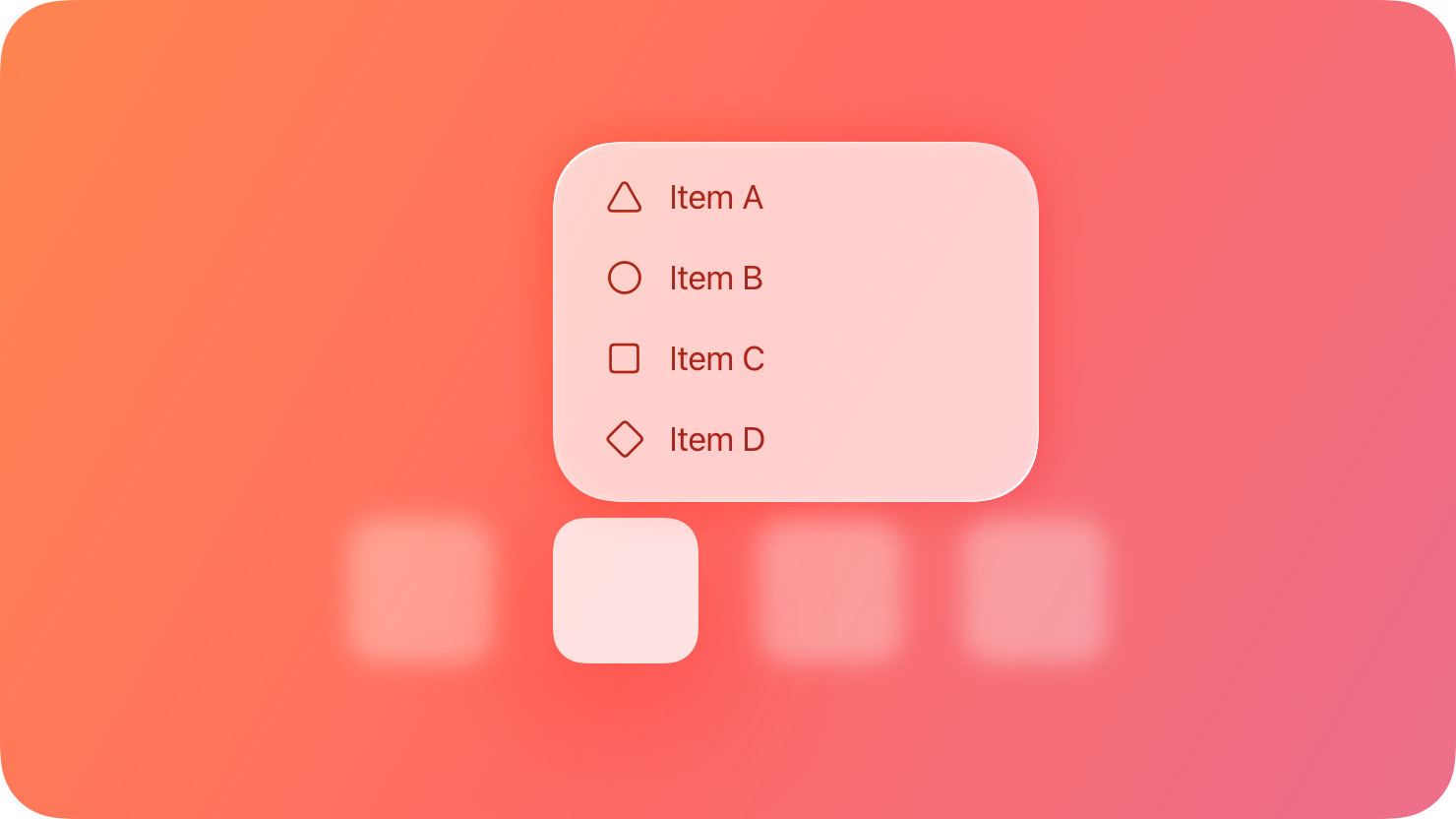
People can get a menu of available quick actions when they touch and hold an app icon (on a 3D Touch device, people can press on the icon with increased pressure to see the menu). For example, Mail includes quick actions that open the Inbox or the VIP mailbox, initiate a search, and create a new message. In addition to app-specific actions, a Home Screen quick action menu also lists items for removing the app and editing the Home Screen.
Each Home Screen quick action includes a title, an interface icon on the left or right (depending on your app’s position on the Home Screen), and an optional subtitle. The title and subtitle are always left-aligned in left-to-right languages. Your app can even dynamically update its quick actions when new information is available. For example, Messages provides quick actions for opening your most recent conversations.
## [Best practices](https://developer.apple.com/design/human-interface-guidelines/home-screen-quick-actions#Best-practices)
**Create quick actions for compelling, high-value tasks.** For example, Maps lets people search near their current location or get directions home without first opening the Maps app. People tend to expect every app to provide at least one useful quick action; you can provide a total of four.
**Avoid making unpredictable changes to quick actions.** Dynamic quick actions are a great way to keep actions relevant. For example, it may make sense to update quick actions based on the current location or recent activities in your app, time of day, or changes in settings. Make sure that actions change in ways that people can predict.
**For each quick action, provide a succinct title that instantly communicates the results of the action.** For example, titles like “Directions Home,” “Create New Contact,” and “New Message” can help people understand what happens when they choose the action. If you need to give more context, provide a subtitle too. Mail uses subtitles to indicate whether there are unread messages in the Inbox and VIP folder. Don’t include your app name or any extraneous information in the title or subtitle, keep the text short to avoid truncation, and take localization into account as you write the text.
**Provide a familiar interface icon for each quick action.** Prefer using [SF Symbols](https://developer.apple.com/design/human-interface-guidelines/sf-symbols) to represent actions. For a list of icons that represent common actions, see [Standard icons](https://developer.apple.com/design/human-interface-guidelines/icons#Standard-icons); for additional guidance, see [Menus](https://developer.apple.com/design/human-interface-guidelines/menus).
If you design your own interface icon, use the Quick Action Icon Template that’s included with [Apple Design Resources for iOS and iPadOS](https://developer.apple.com/design/resources/#ios-apps).
**Don’t use an emoji in place of a symbol or interface icon.** Emojis are full color, whereas quick action symbols are monochromatic and change appearance in Dark Mode to maintain contrast.
## [Platform considerations](https://developer.apple.com/design/human-interface-guidelines/home-screen-quick-actions#Platform-considerations)
_No additional considerations for iOS or iPadOS. Not supported in macOS, tvOS, visionOS, or watchOS._
## [Resources](https://developer.apple.com/design/human-interface-guidelines/home-screen-quick-actions#Resources)
#### [Related](https://developer.apple.com/design/human-interface-guidelines/home-screen-quick-actions#Related)
[Menus](https://developer.apple.com/design/human-interface-guidelines/menus)
#### [Developer documentation](https://developer.apple.com/design/human-interface-guidelines/home-screen-quick-actions#Developer-documentation)
[Add Home Screen quick actions](https://developer.apple.com/documentation/UIKit/add-home-screen-quick-actions) — UIKit
## Handler checks
Treat shortcut items as entry points rather than authorization. Handle cold launch and an already-running scene, re-check signed-in account and permissions, and route to a safe fallback if a recent item no longer exists. Keep sensitive names out of public Home Screen labels. Four app-specific items is an upper bound, not a requirement to invent three or four tasks.
Related skills
| Skill | Stars | Updated | Works with | Status | Install |
|---|---|---|---|---|---|
| brainstormingobra/superpowersYou MUST use this before any creative work - creating features, building components, adding functionality, modifying behavior, or planning anything new, in software or out of it (a talk, a business, a renovation). | Stars: 322k | Updated | Claude CodeCodex | Verified | Install |
| brand-guidelinesanthropics/skillsApplies Anthropic's official brand colors and typography to any sort of artifact that may benefit from having Anthropic's look-and-feel. Use it when brand colors or style guidelines, visual formatting, or company design standards apply. | Stars: 198k | Updated | Claude CodeCodex | Verified | Install |
| frontend-designanthropics/skillsGuidance for distinctive, intentional visual design when building new UI or reshaping an existing one. Helps with aesthetic direction, typography, and making choices that don't read as templated defaults. | Stars: 198k | Updated | Claude CodeCodex | Verified | Install |
| mcp-builderanthropics/skillsGuide for creating high-quality MCP (Model Context Protocol) servers that enable LLMs to interact with external services through well-designed tools. Use when building MCP servers to integrate external APIs or services, whether in Python (FastMCP) or Node/TypeScript (MCP SDK). | Stars: 198k | Updated | Claude CodeCodex | Verified | Install |